
Your partners already use AI tools like ChatGPT and Claude for their local marketing. But those tools don't know your brand. Ask them for your logo or next month's campaign, and they guess, or your partner ends up emailing your team.
The Marvia MCP fixes that. Connect ChatGPT, Claude, or another AI tool to Marvia, and your partners can find approved files and see what's coming up on your marketing calendar, right from the AI tool they already use.
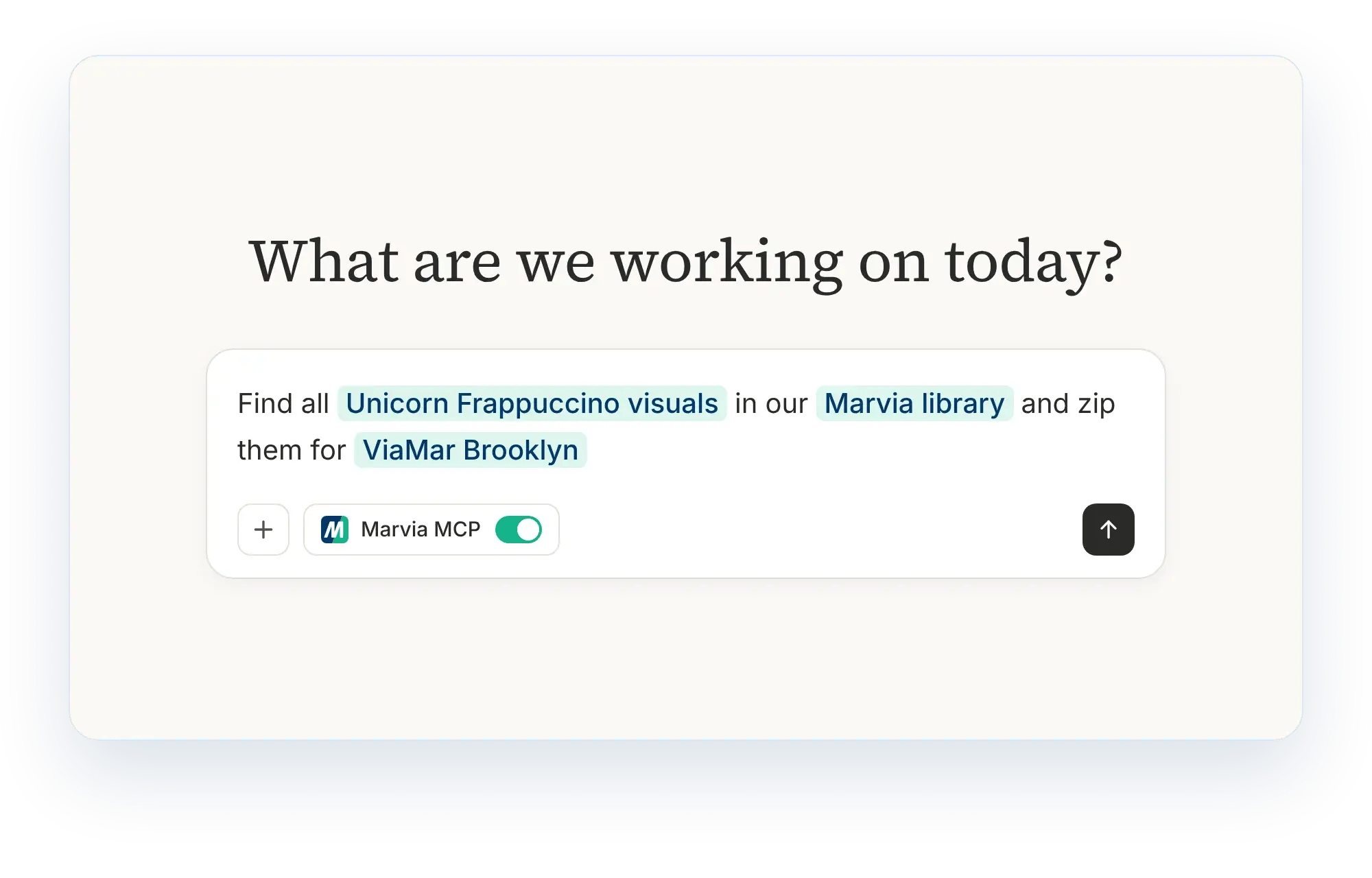
What is an MCP?
MCP stands for Model Context Protocol. It's an open standard that lets AI tools like ChatGPT and Claude connect to other software and use the information in it.
Without an MCP, an AI tool only knows what it learned during training and what you paste into the chat. It doesn't know your logo, your latest campaign, or what's planned for next month. With the Marvia MCP, it can look those things up in Marvia when someone asks.
Think of it as a plug. Your partners keep working in the AI tool they like. The MCP connects that tool to Marvia, so the answers come from your approved files instead of the open internet.
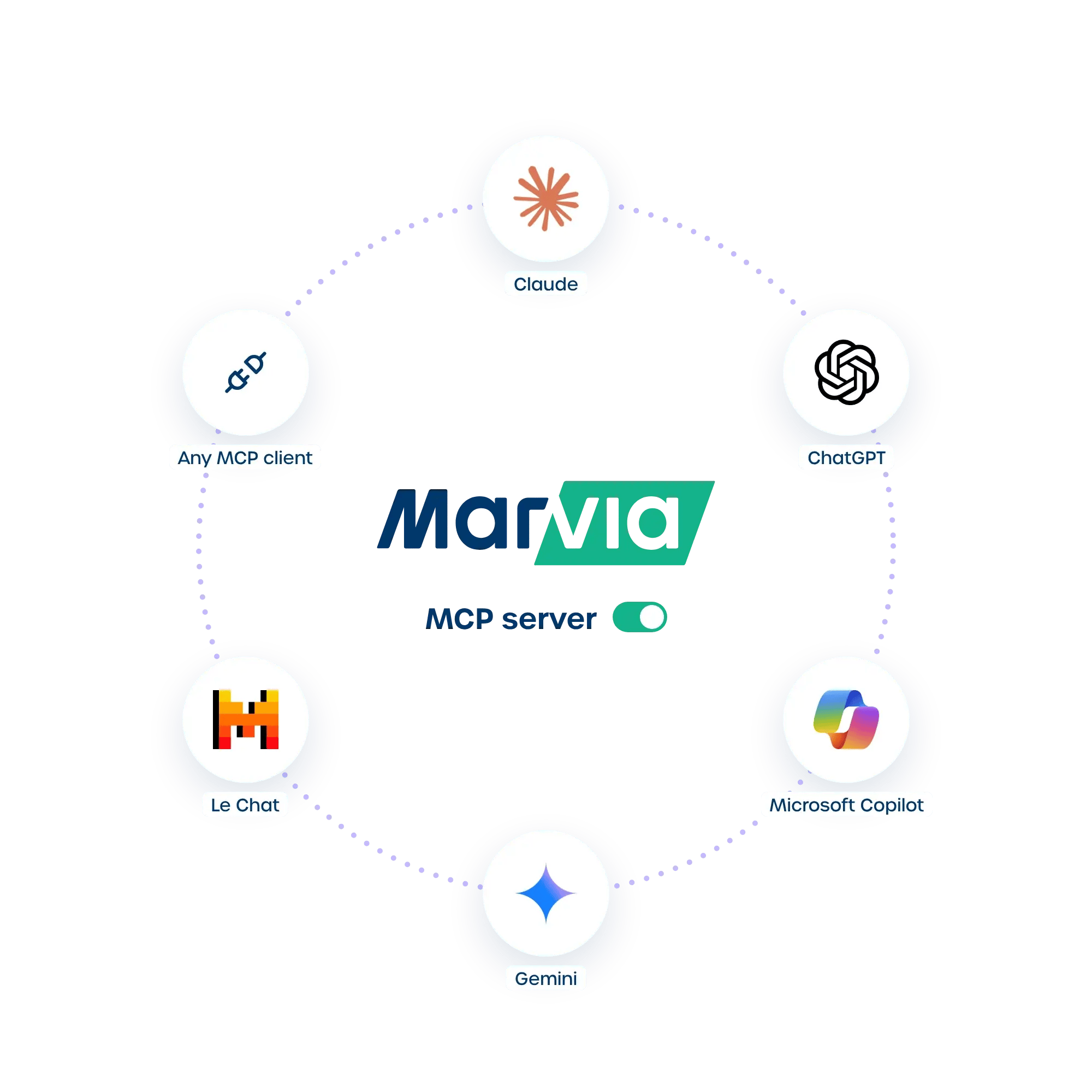
What your partners can do with the Marvia MCP
The first version focuses on the two things partners ask HQ for most: the right file, and what's coming up.
Find approved files. Partners ask in plain language and get files from your Marvia DAM, with a link to download them. For example:
-
"Find the logo for dark backgrounds."
-
"Show me the photos for the spring campaign."
-
"Give me the latest product video."
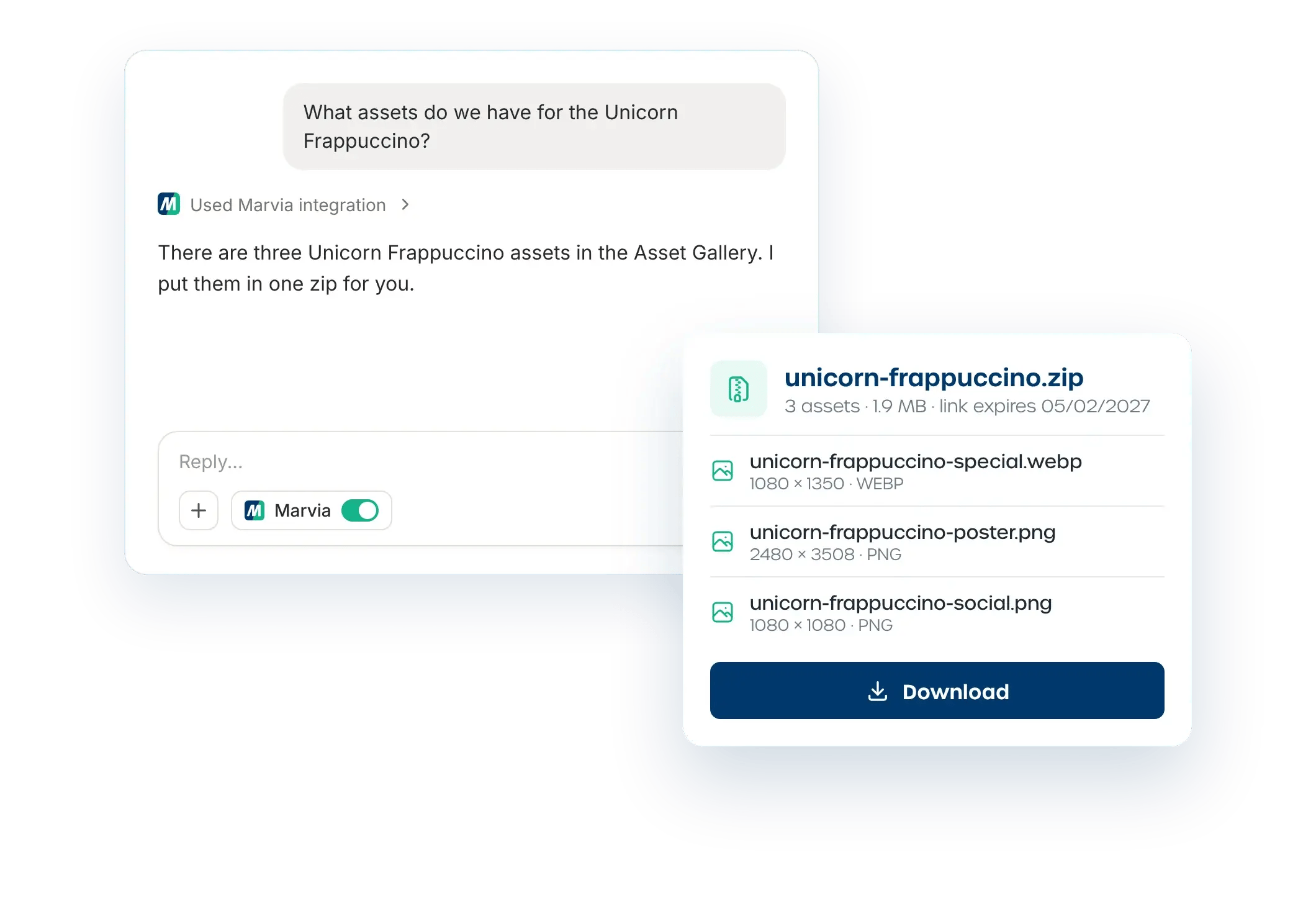
See what's on the marketing calendar. Partners can ask what's planned, so they can prepare locally on time. For example:
-
"What campaigns are coming up next month?"
-
"When does the holiday promotion start?"
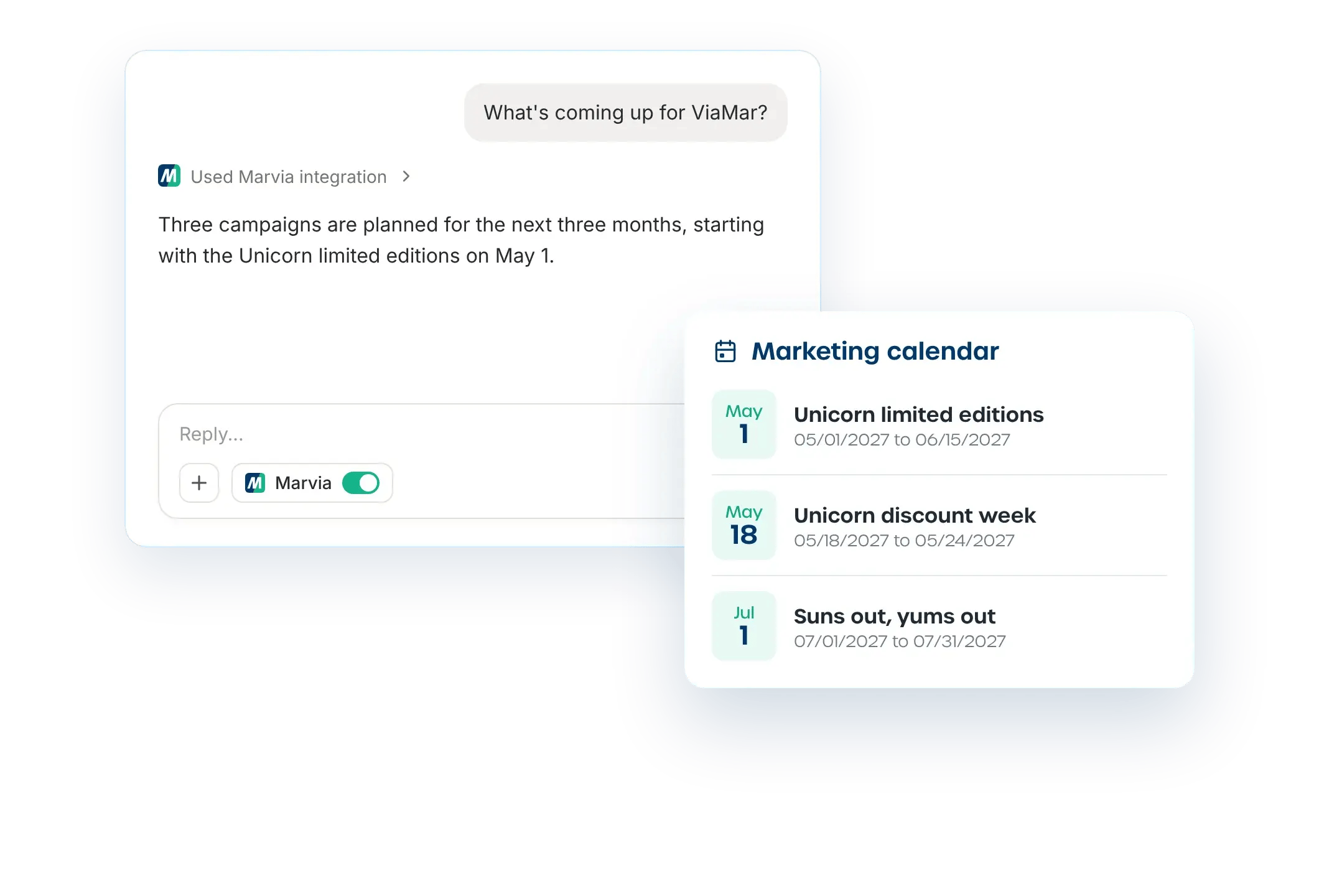
Because it all happens in the same chat, partners can go straight from question to work. They check what's planned for next month, grab the campaign visuals, and start on their local post, without opening another tool or waiting on an email from HQ.
This is the first version. We're adding more of Marvia to the MCP step by step, and you'll find every update in our changelog.
Same roles and permissions, nothing new to set up
The Marvia MCP follows the roles and permissions you've already set in Marvia. A partner who connects their AI tool sees exactly what they'd see when logged in to Marvia, and nothing more.
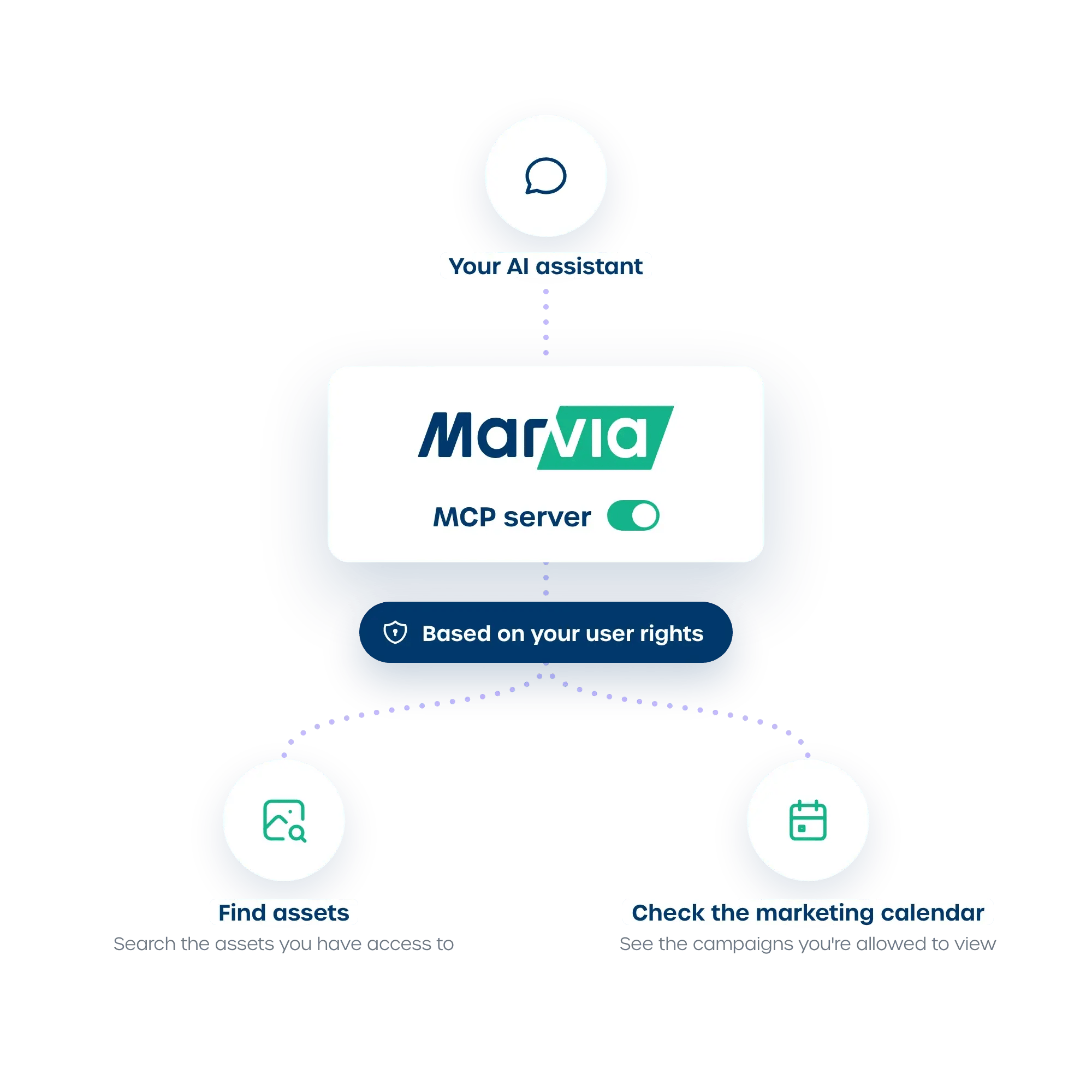
So a franchisee in Texas only gets the files and calendar items meant for their location or group. Files you haven't shared with them don't show up in their answers, and neither do campaigns that aren't planned for them.
For your team, that means one place to manage access. Change a role or a permission in Marvia, and the MCP follows.
How to get started
Get started in two steps:
-
Turn it on. An admin goes to Settings > Platform settings > Marvia AI and ticks Enable under MCP server.
-
Connect the AI tool. Each user finds their MCP URL under My Account > Personal information and adds it as a connector in ChatGPT, Claude, or the AI tool they use. The first time, they log in to Marvia once from that AI tool.
Once it's set up, there's nothing new for partners to learn. They ask for what they need in the AI tool they already use, and Marvia gives them the approved version.
More partners using your approved materials, and far fewer requests landing on your team.
Want to see what Marvia AI can do for your partners, from the MCP to the AI Assistant? Book a demo or ask your Customer Success Manager how to turn it on.
FAQs